Use Text Generation WebUI on Windows#
This quickstart guide walks you through setting up and using the Text Generation WebUI (a Gradio WebUI for running Large Language Models) with bigdl-llm.
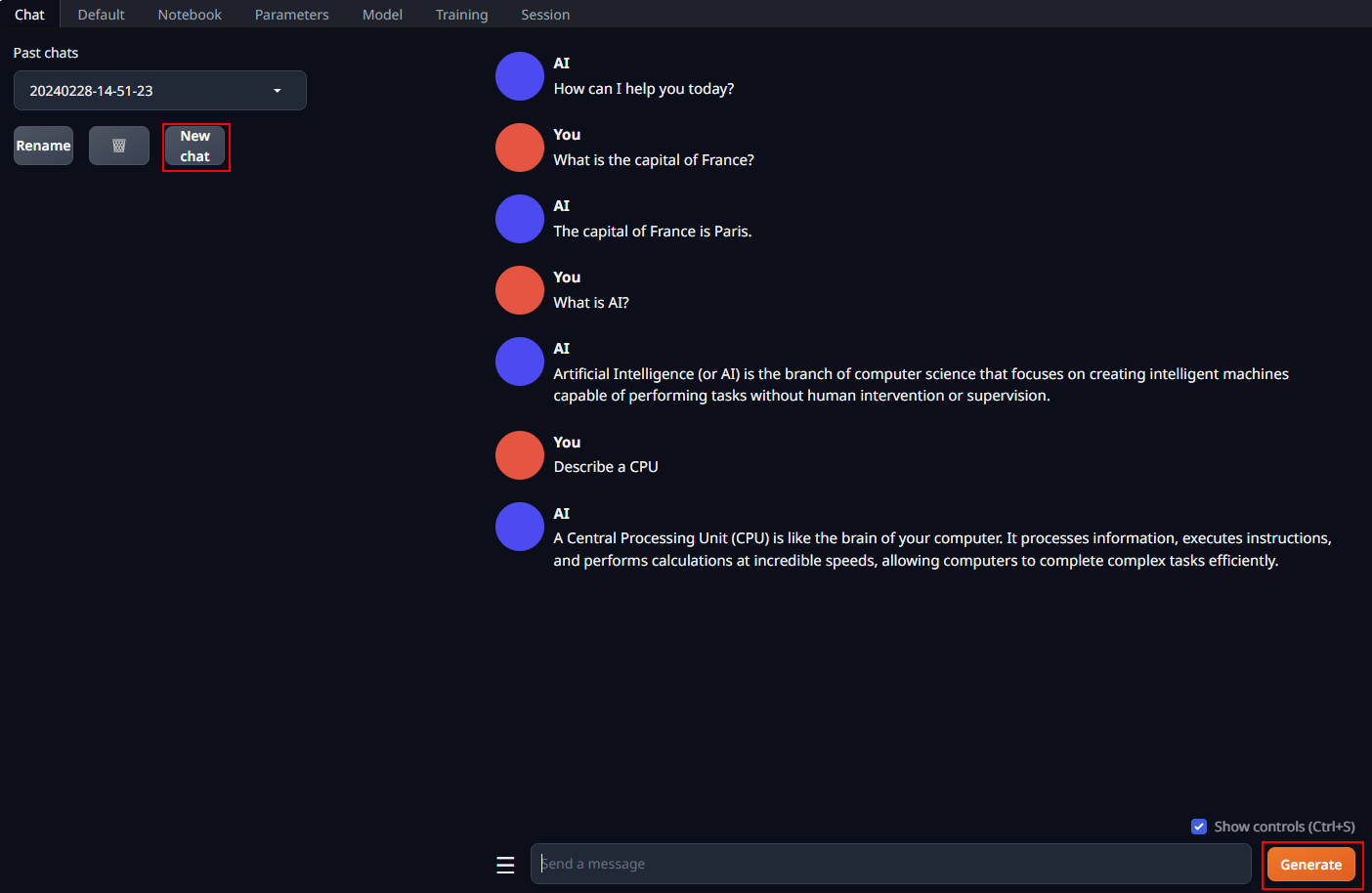
A preview of the WebUI in action is shown below:
1 Install BigDL-LLM#
To use the WebUI, first ensure that BigDL-LLM is installed. Follow the instructions on the BigDL-LLM Installation Quickstart for Windows with Intel GPU.
After the installation, you should have created a conda environment, named llm for instance, for running bigdl-llm applications.
2 Install the WebUI#
Download the WebUI#
Download the text-generation-webui with BigDL-LLM integrations from this link. Unzip the content into a directory, e.g.,C:\text-generation-webui.
Install Dependencies#
Open Anaconda Prompt and activate the conda environment you have created in section 1, e.g., llm.
conda activate llm
Then, change to the directory of WebUI (e.g.,C:\text-generation-webui) and install the necessary dependencies:
cd C:\text-generation-webui
pip install -r requirements_cpu_only.txt
3 Start the WebUI Server#
Set Environment Variables#
Configure oneAPI variables by running the following command in Anaconda Prompt:
Note
For more details about runtime configurations, refer to this guide
call "C:\Program Files (x86)\Intel\oneAPI\setvars.bat"
If you’re running on iGPU, set additional environment variables by running the following commands:
set SYCL_CACHE_PERSISTENT=1
set BIGDL_LLM_XMX_DISABLED=1
Launch the Server#
In Anaconda Prompt with the conda environment llm activated, navigate to the text-generation-webui folder and start the server using the following command:
Note
with --load-in-4bit option, the models will be optimized and run at 4-bit precision. For configuration for other formats and precisions, refer to this link
python server.py --load-in-4bit
Access the WebUI#
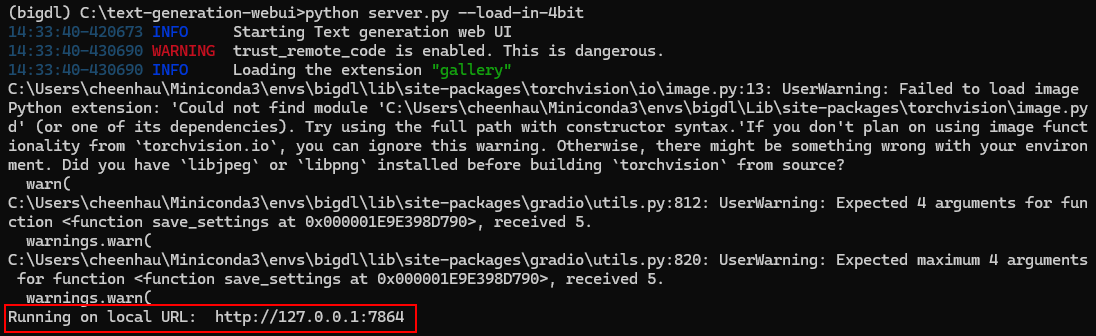
Upon successful launch, URLs to access the WebUI will be displayed in the terminal as shown below. Open the provided local URL in your browser to interact with the WebUI.
4. Using the WebUI#
Model Download#
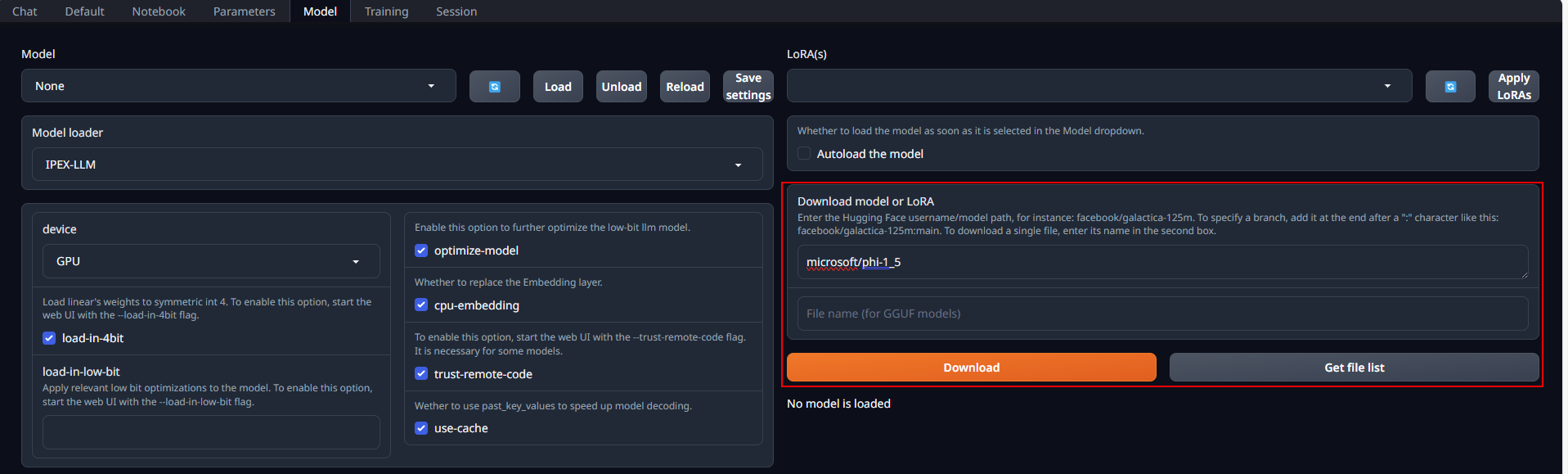
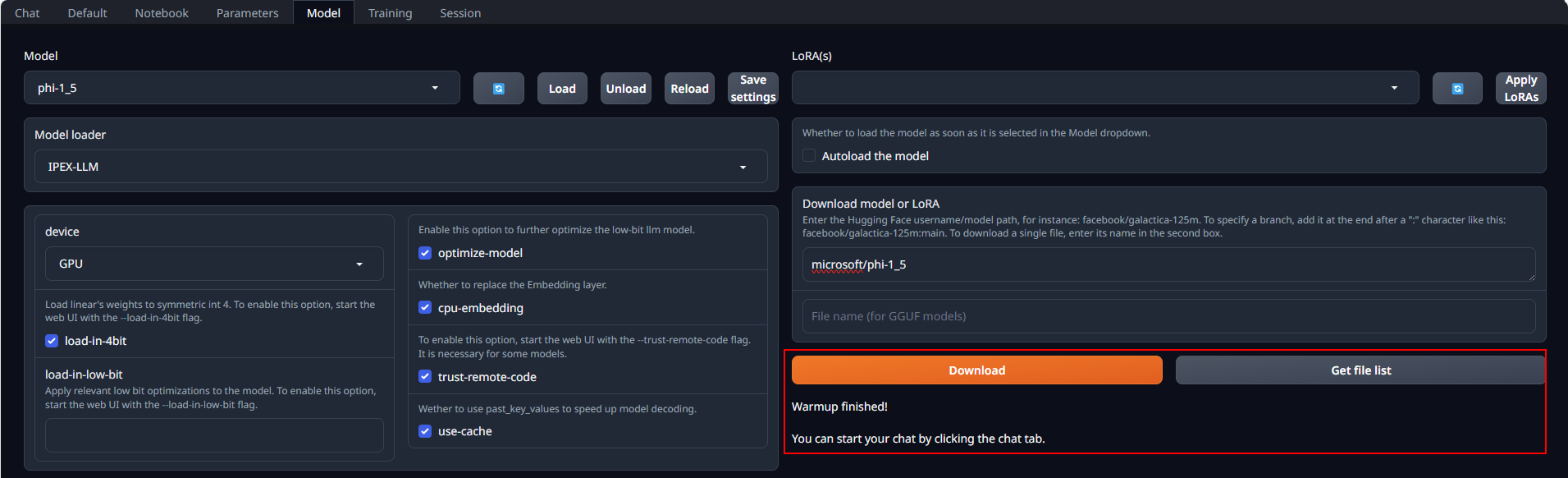
Place Huggingface models in C:\text-generation-webui\models by either copying locally or downloading via the WebUI. To download, navigate to the Model tab, enter the model’s huggingface id (for instance, microsoft/phi-1_5) in the Download model or LoRA section, and click Download, as illustrated below.
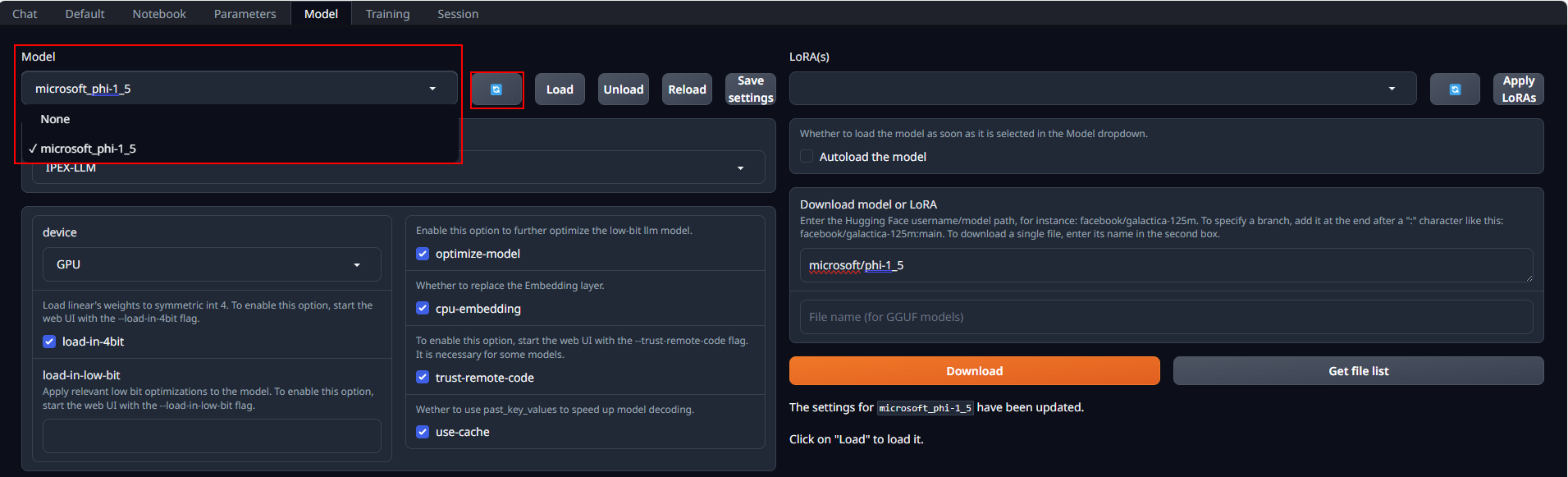
After copying or downloading the models, click on the blue refresh button to update the Model drop-down menu. Then, choose your desired model from the newly updated list.
Load Model#
Default settings are recommended for most users. Click Load to activate the model. Address any errors by installing missing packages as prompted, and ensure compatibility with your version of the transformers package. Refer to troubleshooting section for more details.
If everything goes well, you will get a message as shown below.
Chat with the Model#
In the Chat tab, start new conversations with New chat.
Enter prompts into the textbox at the bottom and press the Generate button to receive responses.
Exit the WebUI#
To shut down the WebUI server, use Ctrl+C in the Anaconda Prompt terminal where the WebUI Server is runing, then close your browser tab.
Troubleshooting#
Potentially slower first response#
The first response to user prompt might be slower than expected, with delays of up to several minutes before the response is generated. This delay occurs because the GPU kernels require compilation and initialization, which varies across different GPU types.
Missing Required Dependencies#
During model loading, you may encounter an ImportError like ImportError: This modeling file requires the following packages that were not found in your environment. This indicates certain packages required by the model are absent from your environment. Detailed instructions for installing these necessary packages can be found at the bottom of the error messages. Take the following steps to fix these errors:
Exit the WebUI Server by pressing Ctrl+C in the Anaconda Prompt terminal.
Install the missing pip packages as specified in the error message
Restart the WebUI Server.
If there are still errors on missing packages, repeat the installation process for any additional required packages.
Compatiblity issues#
If you encounter AttributeError errors like AttributeError: 'BaichuanTokenizer' object has no attribute 'sp_model', it may be due to some models being incompatible with the current version of the transformers package because the models are outdated. In such instances, using a more recent model is recommended.